How to Add a Goal Record to a Fund
This shows you how to add goal records to a fund. Two methods are available. The first is to add the records individually. This method works best if you have only a few records to add. The other method is to import the records. This method is helpful if you have a number of records to add.
What Is a Goal?What Is a Goal?
A goal is a specific monetary amount set by an organization as a fundraising target for a fund or campaign. Organizations can use a goal as a fundraising tool to help increase the financial support for a specific cause.
The Goals setup lets you define specific monetary amounts the diocese wants specific organizations to meet for the selected fund.
Adding Individual Goal Records
Adding Individual Goal Records
 On the Home page, you can open the DM Funds page by selecting Funds in the navigation bar or by clicking the Go to Funds link at the bottom of the Funds card.
- Open the DM Funds page.
- The page opens in card view. To switch to grid view, click this button in the upper right:
 .
. - Locate the fund to which you want to which you want to add a goal record. To quickly find the desired fund, use the Search or Filter function.
 To find out what content a search accepts, hover your mouse over this input hint:
  .
.
- Select the fund's link as shown (in card view) below:
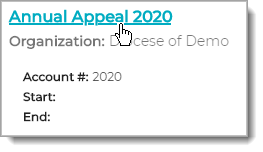
The fund's record is displayed.
- Click the Goals tab to open the Goals setup page.
This page lists all goals currently set up for the selected fund.
- In the upper-right, click
.png) Add Goal.
Add Goal.
A new (blank) goal record is displayed.
- Enter details into the record's fields. Note that an asterisk indicates a required field. For descriptions of the fields, go to Goals Tab#Fields_in_the_Goal_Record.
- Click
 to save the record.
The goal record is now associated with the fund and appears in the list on the fund's Goals tab.
Importing Goal Records
The Goal import feature lets you transfer goal records from an Excel spreadsheet into a fund. Use this feature to import multiple goal records into a fund at the same time. You can import new goal records as well as import records to update (overwrite) existing ones.
Step 1. Create a data file containing goal records
Use the steps below to create a data file containing the goal records you want to import. If you already have a file containing your goal records, you can skip to Step 2. Be aware that for the data file to import successfully, it must be set up correctly. To ensure success, we recommend that you complete this step to download the spreadsheet template and copy data from the matching columns in your existing file into the template.
- Open the DM Funds page.
- The page opens in card view. To switch to grid view, click this button in the upper right: .
- Locate the fund to which you want to which you want to import goal records. To quickly find the desired fund, use the Search or Filter function.
Position your mouse over the Info icon to find out what type of data the Search bar accepts.
- Select the fund's link as shown (in card view) below:
The fund's record is displayed.
- Click the Goals tab to open the Goals setup page.
- Create a data file. To do this:
- Click
 Import Goals to open the Fund Goal Import window.
 - Click this link: Download spreadsheet template.
- Open the downloaded template. The template is an Excel file:
- Click
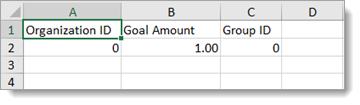
- Complete the information in these fields for each record:
- Organization ID: (required) unique number that identifies the parish.
- Goal Amount: (required) amount of the goal in dollars (0.00).
- Group ID: (required) the unique number that identifies a goal group. If not using groups, leave this field blank.
- Save the file.
You can now import the file containing the goal records into a fund in Development Manager. Go to Step 2.
Step 2. Import the goal records into the fund
- Open the DM Funds page.
The page opens in card view. To switch to grid view, click this button in the upper right: .
- Locate the fund to which you want to import goal records. To quickly find the desired fund, use the Search or Filter function.
- Select the fund's link as shown (in card view) below:
The fund's record is displayed.
- Click the Goals tab to open the Goals setup page. Then, in the upper-right corner, click Import Goals to open the Fund Goal Import window.
- Use one of these methods to import goal records:
- Drag and Drop: find the file on your computer that you want to import. Select the file but do not release the mouse button. Then while pressing the button, drag the file to the Drop file here area. Finally, release the mouse button to begin the import process.
- Browse: click
 . Navigate to the location on your computer where the file is saved. Select the file. Then, follow your browser's process to complete the import.
- The contents of the import file are displayed. Do one of the following:
- If the file has errors, correct them and then re-import the file, starting at Step 5.
- If the file has no errors, click Import to import the goal records into the fund. You can see the records in the grid on the Goals tab.
Related Topics
How to Edit a Goal Record for a Fund
How to Remove a Goal Record from a Fund