 About the DM Contributions Page
The DM Contribution page provides access to your organization's contribution records. On this page, you can add new contribution records and manage existing ones. You can also apply criteria that enables you to find records that have specific characteristics in common, such those coming into the application from a specific giving source or those having the same posting date.
Access Permissions
What Is a Contribution Record?What Is a Contribution Record?
A contribution record contains detailed information about a gift, including the dollar amount of the gift, name of the giver, and its tax-deductible status. For details, go to Contribution Details.
Overview of the DM Contributions Page
The illustration below identifies the main elements on the DM Contributions page. Click a link to view a detailed description of the element.
 When you first open the DM Contributions page, no contributions are displayed. To find a specific contribution, use the Search feature. To view all contributions, click
  .
.
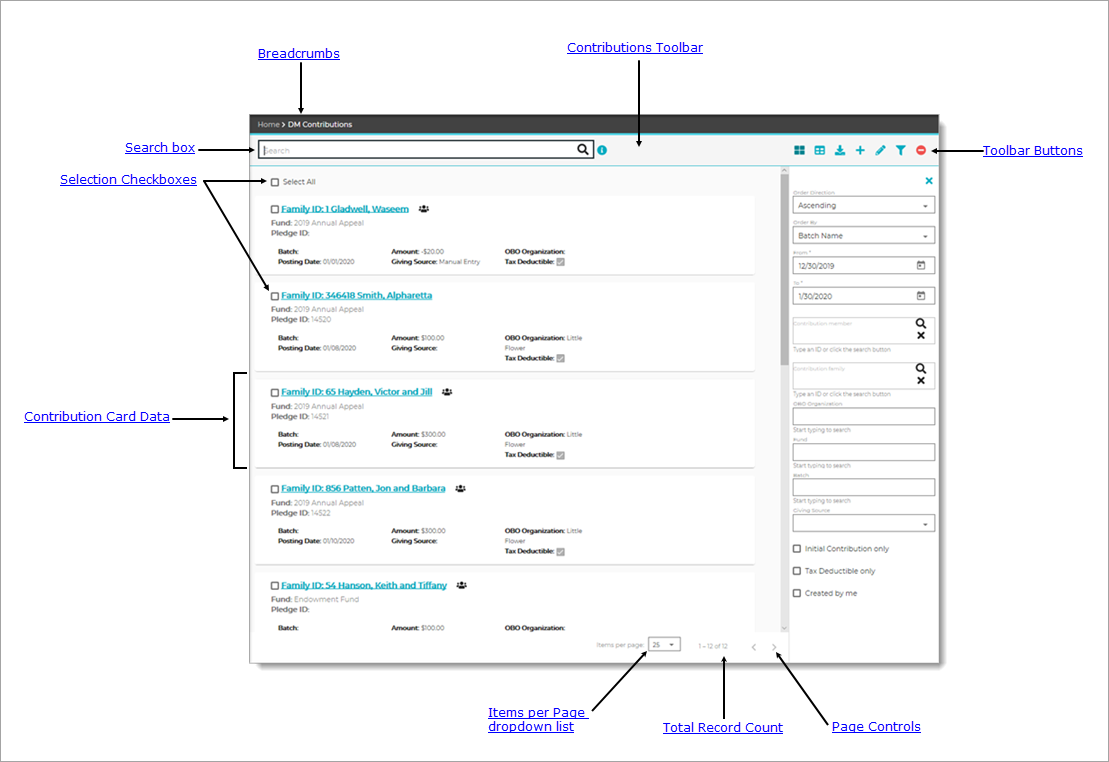
Breadcrumbs
Breadcrumbs are the navigational trail that lets you know where you are now as well as each page you visited before arriving at the current page. The breadcrumb trail reads from left to right, with the link farthest to the left showing the Home page and the links after it showing each page you visited since leaving the Home page.
Each page shown in the breadcrumb trail is a link. Click a link to go directly back to the named page. In the breadcrumb trail illustrated below, the user is currently on the Edit page:

Clicking DM Contributions takes the user directly back to the DM Contributions page.
Contributions Toolbar
The Contributions toolbar, shown below, spans across the top of the page. The toolbar includes a Search box and a group of buttons that give you quick access to the functions you use most often on the DM Contributions page.

Search Feature
The Search feature provides a quick and easy way for you to find contributions without having to look through an entire list, which, depending on the number of contributions you have, can be pages long. Note that results of searches include only contributions to the funds the logged-in user has permission to access.
Click the arrowhead next to an option to expand it and view its description.
 Information Icon Information Icon
The information icon appears to the right of the Search box. Place your mouse on the icon (without clicking) to see what type of information you can search for using the Search box.
Using the Search BoxUsing the Search Box
You can search by Contribution ID, Family ID, Member ID, Fund Name, or Batch Name by typing text into the Search box. When searching by name, you can type the full name or just few characters of the name into the box. Then, click to start the search. The list refreshes to show you the names of contributions matching your search criteria. For example, if a fund is named "Annual Fund 2009," a search for "Annual," "nua," or even just the letter "l" will produce matches. After entering your text, click to start the search.
Never search using an empty search box.
Clearing the Search BoxClearing the Search Box
To clear the search box, select the search criteria currently showing in the box. Then, press the Delete key on your keyboard. Finally, click to display all contributions.
Toolbar Buttons
 Layout
On the right side of the toolbar, two buttons let you change the layout view. Each view has advantages and disadvantages, depending on the device you are using to view your data. Select the view that suits the device, your preference, and style for working.
Click the arrowhead next to an option to expand it and view its description.
- Card View (default)Card View (default)
The default layout for contribution records is called the Card View. This layout arranges contribution records in separate containers that resemble index cards. Each card occupies a single row that spans across the page and contains one record. The card gives you an at-a-glance summary of key information in the record.
To enable card view layout, click
 .
.Use the Items per page dropdown list at the bottom of the page to select the number of cards to display per page.
- Grid ViewGrid View
The Grid View layout arranges contribution records in the form of a table with each record occupying a row. Columns across the top identify the fields in the record (for example, Amount and Giving Source).
Use the Items per page dropdown list at the bottom of the page to select the number of cards to display per page.
 Export
Click a Contribution List report (Excel file). This report lists all of the contributions in your organization that match your filter criteria.
.png) Add New Contribution
Add New Contribution
Click Add New Contribution to open the Contribution Add page where you can add a new contribution record. To view explanations of the fields in the contribution record, go to Contribution Details.
.png) Edit
Edit
To edit a contribution record, first select it. Then, click to open the record to view and edit its details. For instructions, go to How to Edit a Contribution Record.
 Filter
The filter button opens and closes the Filters panel. This panel contains filters that you can apply to DM Contributions list to display a list of records that meet the selected filter criteria.
You can also click  to close the Filter panel.
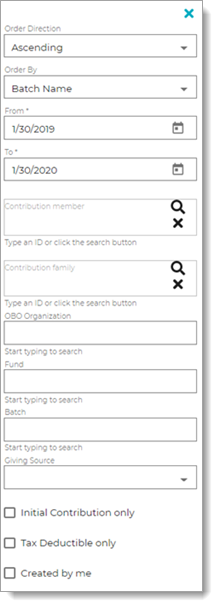
The Filter panel contains eight filters you can apply to narrow down and sort your search results. Click the arrowhead next to a filter option to expand it and view its description.
Order DirectionOrder Direction
Specify the sort order of your results:
- Ascending: sorts alphabetic content from A to Z and numeric content from 0 to 9 (lowest to highest).
- Descending: sorts alphabetic content from A to A and numeric content from 9 to 0 (highest to lowest).
Select the desired field in the contribution record on which to sort results:
- Batch Name: name of the batch containing the contribution.
- Posting Date: date the contribution was posted to your system.
- Fund Name: name of the fund receiving the contribution.
- Amount: dollar amount of the contribution.
- Family ID: unique number that identifies the family in your system.
- Member ID: unique number that identifies the member in your system.
From *
To *
Contribution memberContribution member
Name and giver's Member ID. You can type an ID into the field or click to search for the member's name.
Contribution familyContribution family
Name and giver's Family ID. You can type an ID into the field or click to search for the family's name.
OBO Organization
Name of fund receiving the contribution.
Show contributions from the specified giving source (for example, from ParishSOFT Giving).
Specify the batch containing the contribution.
Initial Contribution only
Tax Deductible onlyTax Deductible only
Select the checkbox to show tax-deductible contributions.
Select the checkbox to show contribution records created by the logged-in user.
Selection Checkboxes
Select All/Select None CheckboxSelect All/Select None Checkbox
This is a global control that lets you select all records on the page at the same time. The system inserts a checkmark in the box next to each record to indicate it is selected.
To deselect all records, select the Select All checkbox again.
You can use this global checkbox when you have a lot of records to select or when most records should be selected. You can then individually deselect the records you do not want to work with.
Individual CheckboxIndividual Checkbox
You can select individual records by selecting each record's checkbox. You can select as many records as you want. The system inserts a checkmark in the box next to each record to indicate it is selected.
Contribution Card Data
Each contribution card shows the following data pulled from the contribution record. Click the arrowhead next to an option to expand it and view its description.
Unique identification number assigned by the system to the family.
Name of fund receiving the contribution.
Unique number identifying the pledge
Name of the batch containing the pledge.
Date the contribution was posted to the fund.
Total amount of the contribution.
Method used to bring the contribution into the system. For example, manual entry.
OBO OrganizationOBO Organization
Organization on whose behalf the contribution is made.
Indicates whether the contribution is tax deductible according to IRS regulations.
Items Per Page Dropdown List
From the dropdown list, select the number of records you want to view at a time on the page. You can limit the number of items to 25, 50, or 75.
Page Controls
Two controls, located at the bottom of the page, enable you to quickly page through the list of records:
 Next Page: click to page forward through the list.
 Previous page: click to page backward through the list.
Total Record Count
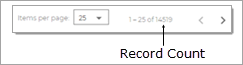
As shown below, the total number of contribution records in your database is displayed to the left of the page controls:
Related Topics
How to Edit a Contribution Record